




Bluetooth Pairing in Windows: Tips and Solutions
- Tech news
- August 1, 2023
- No Comment
- 40
Introduction to Bluetooth Pairing in Windows
Bluetooth is a widely used wireless technology that allows data transfer between devices, such as smartphones, headphones, speakers, and keyboards. When it works, Bluetooth provides a convenient and seamless connection. However, users often encounter challenges when attempting to pair devices. In this guide, we will explore the common causes of Bluetooth pairing failures and offer practical solutions to troubleshoot these issues in Windows.
Common Causes of Bluetooth Pairing Failures
Bluetooth pairing relies on both hardware and software components, and if they are not compatible, the devices won’t connect. Fortunately, Bluetooth is generally backward compatible, meaning newer devices should be able to pair with older ones. Additionally, devices come with specific Bluetooth profiles, akin to dialects, that must align for successful pairing.
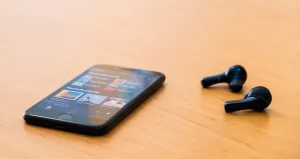
Troubleshooting Bluetooth Pairing Issues in Windows
To ensure a smooth pairing process, follow these troubleshooting steps:
Check Bluetooth Status: Verify that Bluetooth is turned on. On Windows, access Bluetooth settings by navigating to Settings > Devices > Bluetooth.
Know the Pairing Process: Familiarize yourself with the pairing process specific to your devices. Some may require a code input, while others utilize Near Field Communications (NFC).
Enable Discoverable Mode: To pair devices like smartphones and car infotainment systems, enable discoverable mode on your phone and initiate a search on the car system. Follow the on-screen instructions for pairing.
Proximity Matters: Make sure the devices you want to pair are within five feet of each other for reliable connectivity.
Power Cycle Bluetooth: Try turning off and on Bluetooth (e.g., toggle airplane mode for smartphones) to resolve minor issues.
Remove Old Pairings: If a device is previously paired with another, remove it to avoid conflicts. Unpair devices that you no longer use or intend to pair in the future.
Charge Both Devices: Ensure that both devices have sufficient battery power. Some devices may turn off Bluetooth when the battery is low.
Update Drivers and Firmware: Install the correct drivers for your computer and update hardware firmware if necessary. Check the manufacturer’s website for the latest versions.
Limit Data Sharing: Limit the data shared between devices to prevent interference. Customize sharing options in your device’s settings.
Clear Bluetooth Cache: Clear the Bluetooth cache on Android and iOS devices to resolve app-related interference.
Solving Problems with Bluetooth Multipoint Pairing
Multipoint pairing enables a Bluetooth device to connect with multiple devices simultaneously. While not all devices support multipoint, those that do might require specific steps for setup and troubleshooting:
Ensure Device Compatibility: Confirm that your device supports multipoint pairing. Check the product manual or search for “
multipoint Bluetooth.”
Trouble Adding Multipoint Devices: If you face difficulties adding a second device, pair the first device individually first. Then, turn off the first device and pair the second one. Reboot both devices.
Can’t Connect to Previously Paired Devices: If your multipoint Bluetooth device doesn’t connect to your usual two devices, it may be paired with a third one. Use an app (if available) to toggle the devices you want to connect or re-pair the disconnected device.
Keep in mind that not all wireless devices use Bluetooth. Alternatives like Wireless Gigabit, Wireless HD, ANT+, ZigBee, NFC, and Wi-Fi Direct exist, but they require additional hardware for compatibility with phones, tablets, or computers.
Conclusion
Bluetooth pairing in Windows offers great convenience when it functions correctly. By understanding common causes of pairing failures and implementing the troubleshooting tips provided, users can overcome Bluetooth connectivity challenges. Whether dealing with single-point pairing or multipoint pairing, these solutions will help ensure seamless Bluetooth connections in Windows devices.





