



Troubleshooting USB Device Connection Issues in Windows
- Tech news
- August 2, 2023
- No Comment
- 26
Introduction: USB Device Connection Issues
USB problems are not uncommon in Windows 10, and they can be quite perplexing since there are several potential reasons behind a USB device not being recognized by Windows 10 computers. USB devices are essential in our daily lives, serving as storage and data transfer tools, and even as bootable media. If you are encountering the “USB device not detected” or “USB device not working” error on Windows 10, follow this guide to troubleshoot the issue.
Common Reasons for USB Device Not Recognized in Windows 10:
Restart Windows 10: Sometimes, a simple device reboot can resolve the issue of an unrecognized USB device. Try unplugging the USB device, waiting for a few minutes, and then restarting your computer. Plug the USB device back in and check if it is recognized.
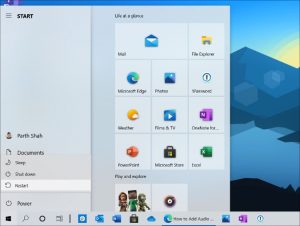
For many cases of undetected USB devices, a computer reboot can be sufficient. This action effectively restarts the motherboard, which is responsible for connecting all computer hardware, including the USB ports. Restarting the motherboard can often fix temporary power supply issues for external devices.
To perform a motherboard restart, follow these steps:
Cut your computer’s power at its source by unplugging it from the wall outlet.
Leave the computer idle for a few minutes, then plug it back into the wall outlet to restart it.
Once your computer restarts, check if the USB device is now recognized.
Update USB Drivers:
Outdated USB drivers can cause Windows 10 to fail to detect USB devices. You can easily update the USB drivers using the Device Manager. Here’s how:
Press the Windows key on your keyboard and search for “Device Manager.”
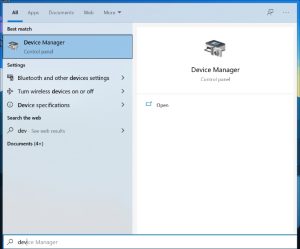
Press Enter to open the Device Manager.
Locate “USB drivers” under “Universal Serial Bus controllers” and right-click on it.
Select the “Update driver” option to let the system download and install the latest available drivers.
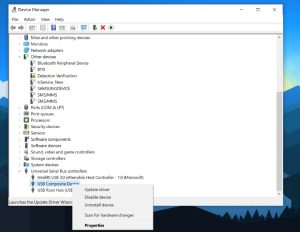
After updating the drivers, restart your PC and try connecting the USB device again to check if it is now recognized.
Plug Out Other USB Devices:
Having multiple USB devices connected to your computer can sometimes create conflicts that lead to USB devices not being recognized by Windows 10. To avoid such conflicts, try disconnecting other USB devices, such as a mouse or keyboard, and see if the intended USB device works in isolation.
If you are using a Type-C dongle to connect the USB device, ensure that it is of high quality and functions properly without any issues.
Fix USB Root Hub:
The USB root hub is a software driver that allows you to connect multiple USB devices to your computer. Many computers have multiple root hubs to facilitate data sharing across multiple devices. You can use the USB root hub to resolve issues where the computer cannot recognize a USB drive. Follow these steps:
Press the Windows key and search for “Device Manager” again.
Find the “Universal Serial Bus controllers” option and single-click to expand it.
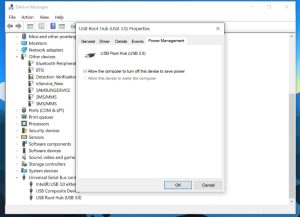
Locate the “USB Root Hub” option in this category, right-click it, and choose “Properties.”
Go to the “Power Management” tab and uncheck the option that says “Allow the computer to turn off this device to save power.” Click “OK” to save your changes.
Customize the USB Selective Suspend Settings:
If the Windows 10 hub driver automatically suspends the USB, the USB device will not be recognized by the system. To prevent this, follow these steps:
Right-click on the Windows icon and click on “Power Options.”
In the “Choose or customize a power plan” window, click on “Change plan settings.”

In the “Edit Plan Settings” window, click on “Change advanced power settings.”
Find and expand “USB settings,” then expand “USB selective suspend settings,” and disable both the “On battery” and “Plugged in” settings.
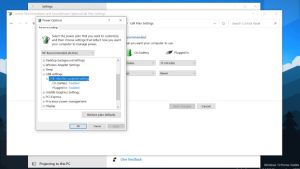
Click “Apply” and then “OK” to save the settings.
Update Windows 10:
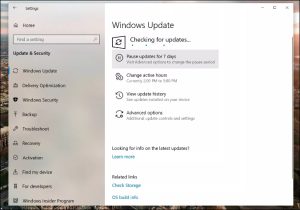
Issues with Windows not detecting USB devices can sometimes arise due to glitches in recent Windows 10 updates. In such cases, Microsoft usually releases fixes promptly. Check for updates by going to “Windows Settings” (Windows key + I) > “Update & Security” and update the OS to the latest available version.
If you have joined the Windows 10 Beta program, it is recommended to leave it and revert to the stable version available.
Conclusion:
Troubleshooting USB device connection issues in Windows 10 can be challenging, but by following the steps in this guide, you can resolve many common problems. Whether it’s a simple reboot, updating drivers, managing power settings, or applying Windows updates, these methods should help you get your USB devices recognized and working seamlessly on your Windows 10 computer. If the issue persists despite trying these solutions, consider seeking further assistance from technical support or relevant online forums.





