




Unlock the Full Potential of Apple Notes: Tips for Smarter Organization
- Productivity
- September 8, 2023
- No Comment
- 38
Introduction: Unlock the Full Potential of Apple Notes
In the digital age, note-taking apps have become indispensable tools for organizing our thoughts, tasks, and ideas. Apple Notes, a built-in application for iOS and macOS, has evolved over the years to offer an array of features that can boost your productivity. However, to truly harness its potential, efficient organization is key. In this article, we’ll explore expert tips and techniques to help you get the most out of Apple Notes, whether you’re using it on your Mac or iPhone.
1. Organizing Notes in Folders

One of the fundamental features of Apple Notes is the ability to create folders for better organization. On your Mac, simply navigate to File > New Folder or click the “New Folder” button in the bottom-left corner of the Notes window. Give your folder a name, press “Return,” and start dragging related notes into it. On your iPhone, tap the “New Folder” button in the Folders screen, name it, and tap “Save.” To move notes to your newly created folders, select the notes, tap “Move,” and choose the folder.
2. Start Using Smart Folders

For those with numerous notes, creating Smart Folders can be a game-changer. On your Mac, go to File > New Smart Folder, name it, and check “Make into Smart Folder.” Apply filters such as tags, dates, or attachments to automatically categorize your notes. Your Mac will take care of the rest. On your iPhone, tap “New Folder,” name it, and select “Make into Smart Folder.” Add filters, and you’re done. Let Smart Folders do the heavy lifting when it comes to organizing your notes.
3. Search for Specific Types of Notes
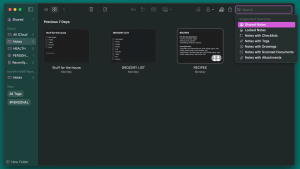
Locating specific notes within a vast collection can be challenging. Simplify your search by looking for specific types of notes. Whether it’s notes with attachments, checklists, shared notes, or locked notes, Apple Notes has you covered. On your Mac, click the search field in the top-right corner and select from the dropdown suggestions. On your iPhone, tap the “Search” bar, choose a suggestion, and customize your search with specific keywords for precise results.
4. Use Emojis in Folder Names
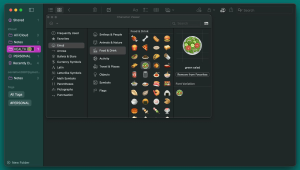
Customize and visually differentiate your folders by adding emojis to their names. On a Mac, quickly insert emojis by pressing Fn + E or go to Edit > Emoji & Symbols. On your iPhone, enable the emoji keyboard or use a third-party emoji keyboard app. Long-press the folder name and select “Rename,” then insert emojis before or after the folder name. This simple trick adds a visual flair to your organization.
5. Use Custom Images to Differentiate Notes

Images are powerful visual cues that can help you locate notes more easily. Add images to your notes by clicking Window > Photo Browser on your Mac and dragging photos into your notes. Control-click (right-click) the image and select “View as Small Images.” On your iPhone, tap anywhere in the note, select the camera icon above the keyboard to add images, and long-press on an image to set it to “View As” Small. Incorporating custom images can aid in visually categorizing and distinguishing your notes.
Conclusion
Apple Notes is a versatile tool that can significantly enhance your productivity, provided you make the most of its organizational features. By creating folders, using Smart Folders, searching for specific types of notes, adding emojis to folder names, and employing custom images, you’ll unlock the full potential of Apple Notes. Whether you’re a Mac or iPhone user, these tips will help you streamline your digital note-taking and stay on top of your tasks and ideas. Say goodbye to cluttered notes and hello to a more organized and productive you.





