



Time Machine with Beta Software: Considerations and Tips for System Recovery
- Tech news
- August 1, 2023
- No Comment
- 29
Introduction:
Beta software offers users the exciting opportunity to test out new features and improvements before they are officially released. However, beta versions can be unpredictable and may lead to data loss or system instability. That’s where Time Machine comes into play. Time Machine is a built-in backup feature in macOS that allows you to create regular backups of your system, making it an essential tool for anyone testing beta software. In this article, we’ll explore some important considerations and tips for using Time Machine with beta software to ensure a smooth system recovery if anything goes wrong.
Backup Frequency:
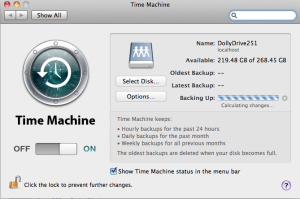
The key to a successful recovery is having a recent backup. Schedule Time Machine backups frequently while using beta software so that you always have the latest data backed up in case you need to revert to a stable macOS version.
Backup Location:
It’s advisable to use a dedicated external storage device solely for Time Machine backups of beta software. Avoid using the same backup disk for beta software and your regular macOS version to minimize potential issues and confusion.
Data Isolation:
Consider isolating the data from your beta software and your stable macOS installation. Mixing beta software data with your regular Time Machine backups can lead to complications during recovery.
Understand Risks:
Beta software is meant for testing and may have bugs or instability. Be aware of the risks involved and be prepared to encounter issues during system recovery.
Separate Beta Installations:
If possible, create a separate partition or use a different external drive for beta software installations. This keeps your stable macOS and beta macOS installations separate, reducing the chances of interference.
Check for Time Machine Updates:
Ensure that your version of Time Machine is compatible with the beta software you are using. Check for any updates or patches for Time Machine if required.
Read Release Notes:
Always read the release notes and documentation for the beta software and any Time Machine updates to understand known issues or limitations.
Provide Feedback:
If you encounter any issues while using Time Machine with beta software, make sure to report them to the appropriate developers or beta testing channels. Your feedback can contribute to improving future updates.
Time Machine is a powerful tool for recovering your system, but it’s essential to remember that beta software is intended for testing purposes and not recommended for critical systems or data. Always rely on stable versions of macOS for critical system recovery and maintain regular, reliable backups using Time Machine or other backup solutions.
Restore Shipping Software:
If you need to return to a previously released version of macOS, such as Big Sur, after testing beta software, you can do so using Time Machine. Here’s how to proceed:
Back up Your Mac:
Before installing beta software, create a Time Machine backup of your stable macOS version.
Start Internet Recovery (Intel-based Mac):
Restart your Mac and hold both the Command and R keys through the startup chime until the Apple logo appears. You will then see the macOS Recovery window.
Start Internet Recovery (Apple silicon):
Power down your Mac, then press and hold the power button until the “Startup Options” window appears. Click the gear icon, then click “Continue.”
Erase Volume Group (Intel-based Mac):
Open Disk Utility and select “Macintosh HD.” Choose “Erase Volume Group” (not just the volume “Macintosh HD”) to prepare for the reversion process.
Reinstall macOS in Internet Recovery:
Click on “Reinstall macOS” and follow the onscreen instructions. If Find My was enabled, you’ll need to activate the Mac after the reinstallation process.
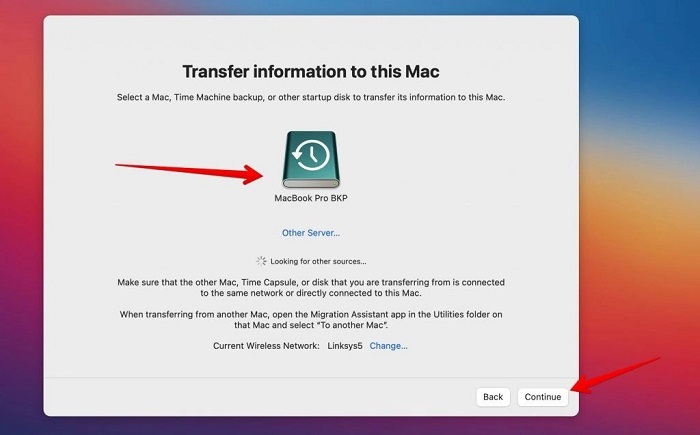
Follow the macOS Setup Assistant:
At the appropriate time, select the option to restore data from a Time Machine backup. Choose the backup made before installing beta software to restore your data.
Remember that the steps may differ depending on your Mac’s processor type (Intel-based or Apple silicon). Choose the appropriate method to ensure a successful system recovery.
Conclusion:
Using Time Machine with beta software is a smart strategy to safeguard your data and system integrity during the testing phase. By following these considerations and tips, you can be better prepared for any unforeseen issues and ensure a smooth transition to a stable macOS version when needed. Remember to make frequent backups, isolate beta software data, and be aware of the potential risks involved in beta testing. Time Machine is a reliable tool, but always use beta software on non-critical systems and maintain regular backups to ensure your data is safe at all times.





