




Mastering Audio Sharing in Zoom: 2 Simple Methods
- Internet and TelecomProductivity
- September 20, 2023
- No Comment
- 23
How to Share Audio on Zoom
In today’s digital landscape, virtual meetings have become the norm, and audio quality plays a pivotal role in ensuring seamless communication. Whether you’re hosting a business presentation, a virtual event, or a casual catch-up with friends, sharing your computer’s audio on Zoom can significantly enhance the overall experience. In this guide, we’ll explore two simple methods to master the art of sharing audio in Zoom.
Method 1: From the Toolbar
Step 1: Initiate Your Zoom Meeting
Begin by starting a new meeting in Zoom or joining an existing one. Once you’re in the meeting, you’re ready to share your audio.
Step 2: Access the Meeting Toolbar
Navigate to the meeting toolbar, typically located at the bottom of your Zoom window. Here, you’ll find various options to manage your meeting settings.
Step 3: Select “Share Screen”
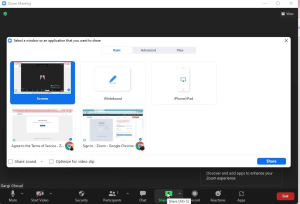
Click on the “Share Screen” option from the meeting toolbar. This action will prompt a dialogue box to appear, providing you with screen sharing options.
Step 4: Choose Your Screen/Application
Within the dialogue box, you’ll see three sharing options: Basic, Advanced, and Files. Select the window or application that you wish to share, ensuring it includes the audio you want to broadcast.
Step 5: Activate Audio Sharing
After sharing your screen or application, click on the “More” option in the Zoom toolbar. A dropdown menu will appear, offering additional sharing settings.

Step 6: Enable Audio Sharing
From the dropdown menu, choose “Share Sound.” This action will ensure that the audio from your selected screen or application is shared with your Zoom meeting participants.
This method is widely used and seamlessly integrates audio sharing into your Zoom screen sharing experience.
Method 2: The Quick Click
For those seeking a faster and more convenient approach to share computer audio in Zoom, this method is a straightforward shortcut.
Step 1: Join or Start Your Zoom Meeting
Begin by either joining an existing Zoom meeting or initiating a new one. Your meeting is now ready to accommodate audio sharing.
Step 2: Access the Screen Sharing Options
Click on the “Share Screen” button, which will prompt a dialogue box to appear. Here, you can select the screen or application you intend to share.
Step 3: Enable Audio Sharing
Look to the bottom left of the dialogue box, where you’ll find the “Share Audio” option. Click on this option to enable audio sharing.
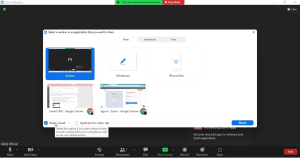
With just a few clicks, you’ll effortlessly share your computer audio with all meeting attendees.
| Method | Steps |
|---|---|
| Method 1: From the Toolbar | 1. Start or join a Zoom meeting.<br> 2. Access the meeting toolbar.<br> 3. Click on “Share Screen.”<br> 4. Choose the screen/application to share.<br> 5. Click on “More” in the Zoom toolbar.<br> 6. Enable “Share Sound.” |
| Method 2: The Quick Click | 1. Join or start a Zoom meeting.<br> 2. Click on “Share Screen.”<br> 3. Enable “Share Audio.” |
These methods provide you with options to seamlessly share audio during your Zoom meetings.
Note: Mobile Limitations
While sharing computer audio in Zoom is straightforward and effective, it’s important to note that this feature is primarily designed for computer and laptop users. If you’re participating in a Zoom meeting from your smartphone, the ability to share audio may be limited. To fully leverage audio sharing, ensure you’re connected via a computer or laptop during your Zoom meeting.
In conclusion, audio quality is a crucial element of successful Zoom meetings. By following these simple methods, you can enhance your virtual gatherings, whether they are professional or personal. So, start sharing your computer audio on Zoom today and elevate your online communication to new heights.





