



How to Browse the Web Without CAPTCHAs on Chrome
- Technology Explained
- September 20, 2023
- No Comment
- 24
The Web Without CAPTCHAs on Chrome
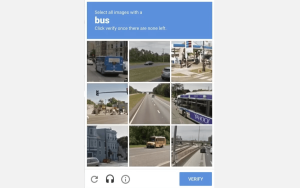
In the fast-paced world of the internet, where information flows freely, one annoyance that many of us share is the ubiquitous CAPTCHA. Those frustrating puzzles designed to separate humans from bots can slow down your browsing experience and make you question if you’re indeed human. But what if there was a way to bypass CAPTCHAs on Chrome? In this article, we’ll explore an experimental feature known as Auto-Verify, currently available in the Canary version of Google Chrome. Join us on this journey to reclaim your browsing experience and say goodbye to CAPTCHA nightmares.
The CAPTCHA Conundrum
CAPTCHAs, while annoying, serve a vital purpose. They protect websites from malicious bots, fraudulent activities, and server overloads. With bot technology evolving, CAPTCHAs are getting tougher, and recent studies even suggest that bots can outperform humans in CAPTCHA tests. This is where Google’s Auto-Verify comes to the rescue.
How Does Auto-Verify Work?
Auto-Verify is a clever feature that stores your CAPTCHA test history in Chrome. This information is accessible to websites, confirming your human status without the need for repeated tests. Even when visiting a new site, Chrome can vouch for your humanity, making CAPTCHA prompts a rarity.
While the feature operates smoothly in the background, its true value shines when you notice a distinct lack of CAPTCHA prompts during your browsing sessions.
Getting Early Access to Auto-Verify
To embrace the benefits of Auto-Verify, you’ll need to venture into the realm of Chrome Canary, the most experimental version of the browser. Keep in mind that this version might be less stable, but the payoff is freedom from CAPTCHAs.
- Download Chrome Canary on Desktop: Start by downloading Chrome Canary on your desktop. Note that it’s available for iOS and Android as well, but for the best experience, we recommend using it on your computer.
- Enable Auto-Verify: Once you have Chrome Canary installed, click on the three-dot icon in the top-right corner of the browser. Navigate to
Settings > Privacy and security > Site settings > Additional content settings > Auto-verify. Activate the feature by toggling the switch to the right, ensuring it’s blue.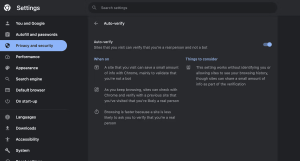
Image by https://www.makeuseof.com/ - Browse the Web Without CAPTCHAs: With Auto-Verify enabled, your web browsing becomes smoother. While you may encounter an initial CAPTCHA test, it should be the last one you need to pass.
- Provide Feedback: By using Auto-Verify, you’re contributing to Google’s testing efforts. If you encounter any issues, such as unexpected CAPTCHA prompts, don’t hesitate to provide feedback. Your input can help refine this feature for a better browsing experience.
Is Auto-Verify the Ultimate Solution?
While Auto-Verify seems promising and performs well in Chrome Canary, it’s too early to draw definitive conclusions. Google has yet to clarify the extent of information websites can save for verification purposes. Although it assures that sites can’t identify you or access your browsing history, some ambiguity remains regarding the data shared during verification.
However, in the world of online privacy trade-offs, a little concession for a more seamless browsing experience might be worthwhile.
In conclusion, if CAPTCHAs have been the bane of your internet existence, Chrome’s Auto-Verify could be your answer. Give it a try in Chrome Canary, and you might just bid farewell to those pesky CAPTCHA nightmares. Embrace a smoother, more bot-resistant browsing experience today.
About the Author
Aaron Brooks is a tech enthusiast with a passion for finding innovative solutions to everyday problems. With over a decade of experience in the tech industry, Aaron has a knack for simplifying complex topics for readers. His goal is to make technology accessible and user-friendly for everyone.





