


Fixing “Network Security Key Mismatch” Error on Windows 11
- Technology Explained
- August 16, 2023
- No Comment
- 26
Fixing Network Security Key
Windows users often encounter the frustrating “network security key mismatch” error when attempting to connect to wireless networks. This common issue can be caused by various factors, ranging from corrupted network drivers to strong antivirus settings. In this guide, we’ll delve into five effective methods to permanently resolve this error on Windows 11.
Understanding the “Network Security Key Mismatch” Error
The “network security key mismatch” error arises when trying to connect a Windows computer to a wireless network. This message indicates that the entered network security key (password) is incorrect. Even when the right key is used, this error can occur due to reasons such as third-party antivirus programs, corrupted network drivers, or conflicts with IP addresses.
Five Methods to Fix the Error and Connect Smoothly
- Restart Your Router for a Fresh Connection
When encountering internet issues like the “network security key mismatch” error, start by restarting your router. This action clears the router’s memory and refreshes its internet connection. Once the router restarts, attempt to connect to the wireless network again. If the error persists, explore other solutions below.
- Forget and Refresh: Clearing Corrupted Network Profiles
A corrupted network profile on your computer can trigger this error. To resolve it, forget the wireless network by:
- Opening the Settings app using Win + I.
- Choosing Network & internet > Wi-Fi.
- Selecting “Manage known networks.”
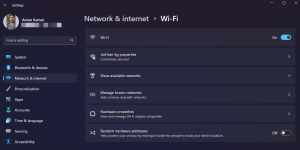
Image by https://www.makeuseof.com/ - Clicking “Forget” next to the troublesome connection.
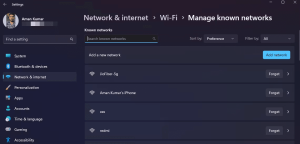
Image by https://www.makeuseof.com/ - After a restart, reconnect by entering the security key. If the issue persists, continue with the guide.
- Troubleshooting Antivirus Interference and Network Drivers
At times, third-party antivirus software can disrupt your network profile, causing the “network security key mismatch” error. Consider temporarily disabling your antivirus software by right-clicking its icon in the system tray and choosing “Disable.” If the problem remains, consult your antivirus manual for detailed instructions. If the error endures, move on to the next step.
- Reinstall the Network Driver
Outdated or corrupt network drivers can trigger this error. To fix it:
- Press Win + X, select Device Manager.
- Expand Network adapters, right-click your adapter, choose “Uninstall device.”
- After confirming the uninstallation, restart your PC. Windows will reinstall the network driver.
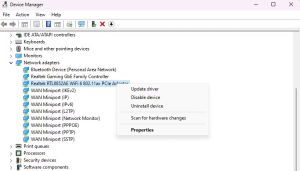
Image by https://www.makeuseof.com/ Click the Uninstall button.
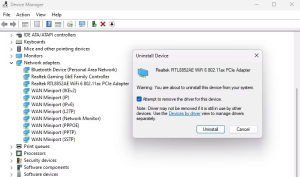
Image by https://www.makeuseof.com/
- Last Resort: Resetting Network Settings for a Clean Slate
If the error persists, reset your network settings to default values. After reset, restart your system to connect to wireless networks without encountering errors.
Conclusion
Experiencing the “network security key mismatch” error while connecting to wireless networks can be exasperating. The good news is that this issue is common and can be resolved using the methods provided. With these solutions, you’ll be able to overcome this error and enjoy seamless wireless connectivity.
In the meantime, if you’re looking to enhance your connection speed, consider exploring additional ways to boost your network performance. Your frustration with network issues will soon be a thing of the past!





