


Fix MacBook Trackpad Not Working Troubleshooting Guide
- Internet and Telecom
- August 1, 2023
- No Comment
- 28
Introduction
A malfunctioning trackpad can be frustrating and disrupt your workflow on a MacBook. However, there are several troubleshooting techniques to resolve trackpad issues and get your Mac back on track. In this guide, we will explore common reasons for trackpad problems and provide step-by-step solutions to address them. Whether it’s a simple software glitch or a settings-related problem, you can follow these methods to restore the functionality of your MacBook’s trackpad.
Identifying Possible Causes of Trackpad Issues
-
- Understanding common reasons for trackpad unresponsiveness.
- Differentiating between software and hardware-related problems.
- Checking for any recent system updates or app installations.
Quick Fixes: External Trackpad or Mouse
- Using an external trackpad or mouse as a temporary solution.
- Ensuring smooth navigation without connectivity issues.
- Plug-and-play options for hassle-free usage.
Checking for macOS Updates
- Verifying the macOS version and update status.
- Accessing the ‘Software Update’ feature in System Preferences.
- Downloading and installing available firmware updates.
Toggling Trackpad Settings
- Understanding the difference between force click and tap to click.
- Accessing ‘Trackpad’ settings in System Preferences.
- Disabling force click and haptic feedback for troubleshooting.
Resetting the Trackpad
- Resetting the trackpad to factory settings in System Preferences.
- Identifying and undoing any customized trackpad settings.
- Ensuring ‘Tap to click’ and ‘Scroll direction: Natural’ are properly configured.
Resetting NVRAM or PRAM
- Performing a simple NVRAM or PRAM reset for Intel-based Macs.
- Understanding the automatic reset for newer Macs with Apple’s native processors.
- Step-by-step guide to reset NVRAM or PRAM.
Resetting the System Management Controller (SMC)
- Different SMC reset procedures for Intel Macs and newer Macs with T2 security chips.
- Correctly shutting down and restarting your MacBook during the process.
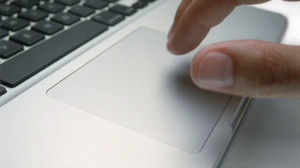
Image by https://www.bing.com/ Running Apple Diagnostics
- Utilizing the built-in diagnostics check for MacBooks.
- Performing a thorough diagnostics assessment for potential hardware issues.
- Interpreting the results and identifying possible solutions.
Using Alternative Tools for Trackpad Control
- Introduction to BetterTouchTool and Swish as trackpad automation tools.
- Customizing input devices for personalized actions and gestures.
- Enhancing trackpad functionality beyond basic settings.
-
Bonus Tips for Mac Maintenance
- Optimizing Mac performance with CleanMyMac X.
- Monitoring real-time Mac performance with iStat Menus.
- Backing up and securing your system with Get Backup Pro.
Conclusion:
A malfunctioning trackpad on your MacBook can be inconvenient, but it doesn’t have to be a persistent issue. By following the troubleshooting techniques outlined in this comprehensive guide, you can diagnose and resolve trackpad problems effectively. From updating macOS and toggling trackpad settings to performing resets and using alternative tools for control, you now have a range of solutions at your disposal. Regular maintenance with apps like CleanMyMac X will also ensure your MacBook stays in peak condition. Empower yourself with these troubleshooting methods to regain control of your MacBook trackpad and enjoy seamless navigation and productivity.





