



External Hard Drive Not Showing Up on Mac
- Tech news
- August 1, 2023
- No Comment
- 27
Introduction
Having an external hard drive is a convenient way to store and access large amounts of data on your Mac. However, it can be frustrating when you connect your external drive, and it doesn’t show up on your Mac. Don’t worry; this guide will walk you through various troubleshooting steps to resolve the issue and get your external hard drive recognized on your Mac.
-
Check Preferences and Settings
First, let’s ensure that your Mac is set up to display external hard drives on the desktop. Follow these steps:
- Go to Finder and click on the Finder button in the menu bar.
- Navigate to Preferences → General.
- Make sure to tick the boxes next to “External disks” and “Hard disks.”
- Also, check Sidebar and make sure “Hard disks” and “External disks” are selected there too.
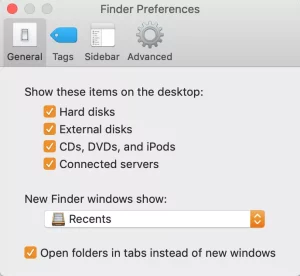
Image by;https://mackeeper.com/
-
Ensure Sufficient Power Supply
Different external hard drives require varying amounts of power supply. If your hard drive needs more power than the USB port can provide, it may not connect correctly. To address this, consider the following:
- Check your USB cable for damage and try a different one if necessary.
- Use a more powerful USB port on your Mac or an external power source.
- Try a self-powered USB hub to increase power supply to the hard drive.
-
Try Other Devices for Power Supply
If the external hard drive still doesn’t show up, test it with another Mac or a Windows device. If it works on a PC but not on your Mac, the drive may not be formatted correctly for macOS.
-
UseTerminal for Advanced Solutions
For more advanced users, Terminal can be a powerful tool to diagnose and fix issues. Follow these steps:
- Open Terminal by going to Applications → Utilities → Terminal.
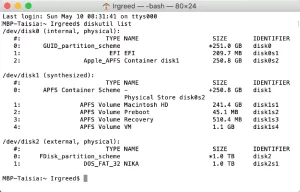
- Type in “diskutil list” to see a list of attached disks. Identify your external hard drive from the list.
- Type “diskutil info disk_,” replacing the underscore with your drive’s identifier digit.
- If the drive is recognized, type “diskutil eject disk_,” and then unplug and reconnect the drive.
Note: On MacOS Mojave or Catalina, you might encounter the “Operation not permitted” error. Grant Terminal full disk access under System Preferences → Security and Privacy → Privacy → Full Disk Access.
-
Engage Disk Utility for Drive Issues
Disk Utility can help diagnose and repair disk-related problems. Follow these steps:
- Go to Applications → Utilities → Disk Utility → View → Show All Devices.
- Locate your external drive on the left sidebar.
- If the drive is mounted, try unmounting and remounting it.
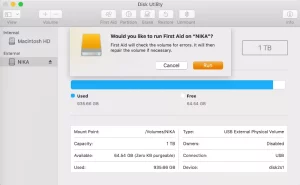
- Run First Aid from the Disk Utility to check for errors and repair the drive.
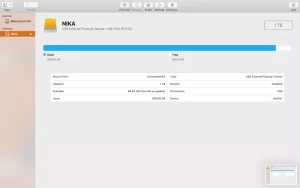
Image by;https://mackeeper.com/
-
Change the Format of Your Hard Drive
Mac and Windows use different formats for external drives. Ensure your drive is formatted for macOS by following these steps:
- Connect the drive to your Mac.
- Go to Applications → Utilities → Disk Utility.
- Select your external hard drive from the left sidebar.
- Click “Erase” in the menu bar and choose the format compatible with your Mac.
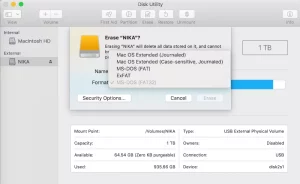
Image by;https://mackeeper.com/
Caution: Formatting will erase all data on the drive, so back up your files before proceeding.
-
Run First Aid
If Disk Utility doesn’t resolve the issue, run First Aid from the Disk Utility program. This will check for and attempt to repair any disk errors causing the mounting problem.
-
Reset NVRAM
Resetting the Nonvolatile random-access memory (NVRAM) can solve glitches that might prevent your external drive from showing up. Follow these steps to reset NVRAM:
- Restart your Mac and hold Command + Option + P + R.
- Release the keys when you hear the startup sound again.
-
Try Plugging it In Slowly
Sometimes, USB drives function better when plugged in slowly, as it allows the device extra time to initialize properly.
-
Try a Different Drive
If all else fails, try connecting a different external hard drive to your Mac. If the new drive is recognized, the problem may lie with the original drive.
Conclusion
By following these troubleshooting steps, you should be able to fix the issue of your external hard drive not showing up on your Mac. Remember to check preferences, power supply, and drive formatting, and utilize utilities like Terminal and Disk Utility when needed. Keeping your Mac updated and maintaining proper ejection practices will also help avoid future complications with external drives. If all else fails, consider seeking professional help or replacing the drive. Happy computing!





