




How to Disable Microsoft Edge Tab Preloading in Windows 11
- Technology Explained
- August 22, 2023
- No Comment
- 35
1. Introduction: Disable Microsoft Edge
Even if you don’t use Microsoft Edge as your primary browser, it can consume valuable system resources by preloading tabs in the background. This can slow down your PC’s performance, especially if you prefer using alternative browsers. Luckily, there are several methods to disable this feature in Windows 11, allowing you to reclaim those resources.
2. Using the Group Policy Editor
This method is primarily intended for users with Windows Pro, Education, or Enterprise editions. Here are the steps to disable Edge Tab Preloading using the Group Policy Editor:
- Press Win + S to open Windows Search, type
gpedit.msc, and hit Enter to open the Group Policy Editor. - Navigate to User Configuration > Administrative Templates > Windows Components > Microsoft Edge.
- Find the “Allow Microsoft Edge to start and load the Start and New Tab page at Windows startup and each time Microsoft Edge is closed” policy.
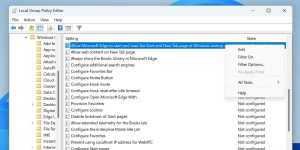
Image by https://www.makeuseof.com/ - Right-click on it and select Edit.
- Enable this policy and set the “Configure tab preloading” option to “Prevent tab preloading.”
- Apply the changes and restart your PC for the policy to take effect.
Click on the Apply button. Then click on the OK button to save the changes.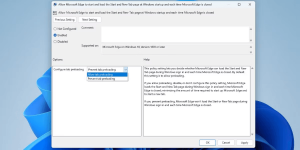
Image by https://www.makeuseof.com/
3. Using the Registry Editor
If you are using the Home version of Windows 11, you can disable Edge Tab Preloading through the Registry Editor. Here’s how:
- Before making any changes, create a backup of your Windows Registry.
- Press Win + R to open the Run dialog, type
regedit, and press Enter. - Go to
HKEY_LOCAL_MACHINE\SOFTWARE\Policies\Microsoft\MicrosoftEdge\Mainin the Registry Editor. - Create a new DWORD (32-bit) Value named “AllowPrelaunch” and set its value to 0 (in hexadecimal).
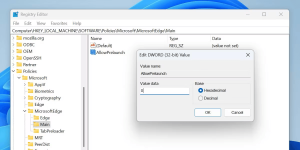
Image by https://www.makeuseof.com/ - Create a new subkey named “TabPreloader.”
- Inside the “TabPreloader” subkey, create another DWORD (32-bit) Value named “AllowTabPreloading” and set its value to 0.
- Close the Registry Editor and restart your PC to apply the changes.
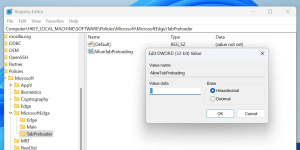
Image by https://www.makeuseof.com/
4. Using CMD or PowerShell
For those who prefer command-line methods, you can use Command Prompt or PowerShell to disable Edge Tab Preloading:
- Open Command Prompt with administrator privileges.
- Execute the following commands:
- Close the Command Prompt and restart your PC to implement the changes.
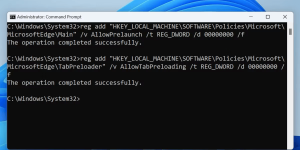
Image by https://www.makeuseof.com/
5. Using the Ultimate Windows Tweaker App
If you prefer a user-friendly interface, you can use a third-party app called the Ultimate Windows Tweaker to disable Edge Tab Preloading:
- Download and install the Ultimate Windows Tweaker app on your PC.
- Run it as an administrator by searching for “Ultimate Windows Tweaker” in the Windows Search app.
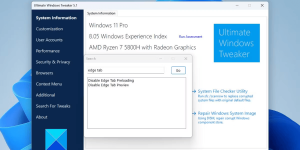
Image by https://www.makeuseof.com/ - Navigate to the “Search For Tweaks” section and search for “edge tab.”
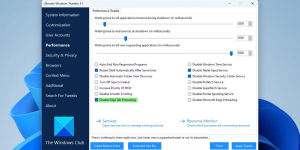
Image by https://www.makeuseof.com/ - Enable the “Disable Edge Tab Preloading” checkbox and apply the tweaks.
- Close the Ultimate Windows Tweaker app and restart your PC to see the changes take effect.
By following one of these methods, you can easily disable Microsoft Edge Tab Preloading in Windows 11, reclaim system resources, and optimize your browsing experience, even if you prefer using alternative web browsers. Choose the method that suits your technical comfort level and enjoy a smoother Windows 11 experience.
Remember that disabling this feature won’t impact the functionality of Microsoft Edge if you decide to use it occasionally, but it can significantly improve your system’s performance if you rarely use the browser.





