




Mastering Credit Card Autofill in Microsoft Edge: A Comprehensive Guide
- Technology Explained
- September 7, 2023
- No Comment
- 28
Mastering Credit Card Autofill in Microsoft Edge
In today’s fast-paced digital world, online shopping has become a staple for many of us. Microsoft Edge’s Autofill feature aims to streamline this process by automatically populating your credit card details on websites. It’s a real time-saver, but like any tool, you need to know how to wield it effectively. In this guide, we’ll dive deep into managing credit card Autofill in Microsoft Edge, ensuring your online transactions are both convenient and secure.
Trusting Microsoft Edge with Your Credit Card Information
Can You Trust Microsoft Edge With Your Credit Card Information?
Before we delve into the mechanics of Autofill, let’s address the elephant in the room – security. Your financial information is sensitive, and Microsoft Edge acknowledges this. It employs robust encryption technology, specifically Advanced Encryption Standard (AES), to safeguard your data. Your encryption key stays securely on your device, and access is restricted by an assigned decryption key. Furthermore, Microsoft Edge boasts additional security features such as two-factor authentication and regular updates.
In short, yes, you can trust Microsoft Edge with your card details. However, if you remain cautious, you can always explore the option of using a virtual credit card for added peace of mind.
Adding Your Credit Card Information to Microsoft Edge
How to Add Your Credit Card Information to Microsoft Edge
Tired of tediously typing in your credit card details with each online purchase? Discover how to save time by adding your credit card information to Microsoft Edge:
On Desktop:
- Launch Edge and click the three horizontal dots in the top-right corner.
- Choose ‘Settings’ from the menu.
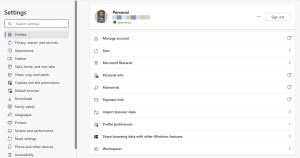
Image by https://www.makeuseof.com/ - Select ‘Profile’ from the left sidebar and click ‘Payment info’ in the right pane.
- Click ‘Open Wallet.’
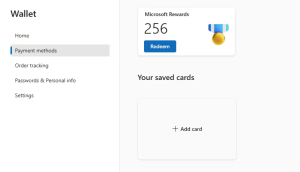
Image by https://www.makeuseof.com/ - Choose ‘Add card’ and enter your card details.

Image by https://www.makeuseof.com/ - Save your information and enable the ‘Save and fill in payment info’ toggle in ‘Settings.’
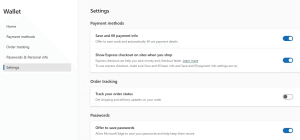
Image by https://www.makeuseof.com/
On Mobile:



- Open Edge and tap the hamburger icon in the bottom-right corner.
- Go to ‘Settings.’
- Tap on your profile and select ‘Payment info.’
- Tap ‘Add,’ enter your card details, and tap the plus icon.
- To enable automatic filling, activate the ‘Save and Fill Payment info’ toggle and tap ‘Done.’
Editing Your Credit Card Information in Microsoft Edge
How to Edit Your Credit Card Information in Microsoft Edge
Credit card details can change, whether due to card renewal or billing address updates. Ensure Autofill remains accurate by editing your information:
On Desktop:
- Launch Edge and navigate to ‘Settings’ > ‘Profile’ > ‘Open Wallet.’
- Select your card.
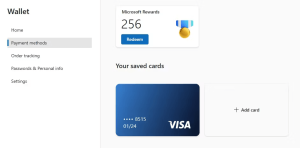
Image by https://www.makeuseof.com/ - Enter your Windows password to view the card details.
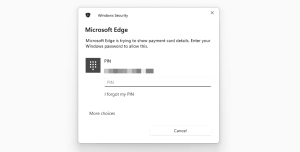
Image by https://www.makeuseof.com/ - Edit your card information and save the changes.
On Mobile:


- Open Edge and access ‘Settings’ > ‘Your profile’ > ‘Payment info.’
- Tap your card.
- Select ‘Edit’ in the top-right corner, update the details, and tap ‘Done.’
Removing Your Credit Card Details From Microsoft Edge
How to Delete Your Credit Card Details From Microsoft Edge
If you’re concerned about security or simply prefer not to store your credit card details in Edge, here’s how to remove them:
On Desktop:
- Open Edge and go to ‘Settings’ > ‘Profile’ > ‘Open Wallet.’
- Choose your card and enter your Windows password.
- Click ‘Remove’ to delete your card from Microsoft Edge.
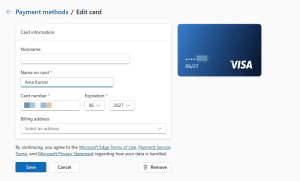
Image by https://www.makeuseof.com/
On Mobile:
- Navigate to ‘Settings’ > ‘Your profile’ > ‘Payment info.’
- Tap ‘Edit’ in the bottom-right corner.
- Select your card and tap ‘Delete’ in the bottom-left corner.

Image by https://www.makeuseof.com/ 
Elevate Your Online Shopping Experience
Entering your credit card details manually can be tedious and prone to errors. Microsoft Edge’s Autofill feature is a game-changer in streamlining your online shopping journey. Now, you know how to add, edit, or remove your credit card information effortlessly. Embrace the convenience, but always prioritize your security.
Aman Kumar, an expert in web technology, has provided valuable insights into managing credit card Autofill in Microsoft Edge. With his guidance, you can navigate the digital marketplace confidently, making every online purchase a breeze. Trust in Microsoft Edge’s security measures and master your credit card Autofill for a smoother, safer online shopping experience.
In conclusion, Microsoft Edge’s Autofill feature is a powerful tool that can enhance your online shopping experience. However, it’s essential to know how to manage your credit card information effectively to ensure both convenience and security. By following the steps outlined in this comprehensive guide, you can make the most of this feature while keeping your financial information safe. Happy shopping!





