




How to Bulk Download Images in Your Browser
- Technology Explained
- August 16, 2023
- No Comment
- 22
1. Introduction to Bulk Downloading Images
Downloading images individually can be cumbersome, especially when you need to gather several images for projects like desktop backgrounds, screensavers, or presentations. Instead of laboriously downloading each image, you can employ browser extensions to simplify the process.
2. Using Image Downloader for Bulk Image Downloads
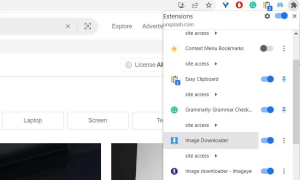
Image Downloader, a convenient browser extension available for Chrome, Edge, Opera, and Vivaldi, streamlines the bulk image download process. To get started, install the extension and initiate a Google search. Upon finding your desired images, use the extension to select and download multiple images simultaneously. Its intuitive interface and filter options make the process seamless.
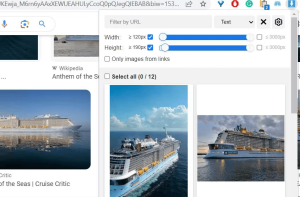
When you’ve opened the extension, it will analyze the webpage and display thumbnails for all its images. Click on the pictures you want to download to select them. Then click Download > Yes to proceed with the downloading of your chosen images.

You can filter the images shown within the extension by dragging the sliders on the Width and Height bars. The add-on will show fewer images when you drag the sliders on those bars on the right to exclude smaller pictures.
3. Streamlining Bulk Downloads with Imageye Extension
Similar to Image Downloader, Imageye is another powerful browser extension compatible with Chromium browsers and Firefox. It offers an array of filtering options, enabling you to fine-tune your image selection. Activate Imageye, select images on a webpage, and efficiently download them with just a few clicks.

Imageye includes Size, Type, Layout, and URL filters to narrow down the image selection. For example, click Size to select Small, Medium, or Large options. If you only want files of a specific format, click Type and choose a filter option like JPG or PNG from there. You can also select Square or Rectangle image filter options by clicking Layout.
Imageye also has an option for switching between bigger and smaller image thumbnail previews within the extension. To access it, click the Settings (cog) button. Then deselect Display images in two columns and select Save to switch to an expanded thumbnail view.

4. Adding Efficiency with Image Assistant for Bulk Image Downloads
ImageAssistant is a versatile extension supported by major browsers, including Chrome, Firefox, Edge, Opera, and Vivaldi. This extension not only facilitates bulk downloads but also features an editor for adding watermarks to images before downloading. After installation, utilize ImageAssistant to extract images from a webpage, apply filters, and effortlessly download your chosen images.
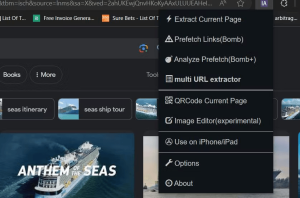
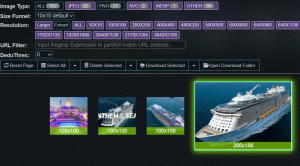
Click the Select button on the right side of the button to enable image selection. Then click on all the images you want to download to select them. Press the Download Selected button and click Continue.

You can filter images by format and size. Click the selected JPEG, PNG, SVG, and WEBP options to exclude formats from the image selection. Select one of the size boxes to include only images bigger than the option’s specified resolution.
To try out the extension’s watermark feature, right-click an image thumbnail and select Send To Image Editor. That will bring up a new tab, from which you can set a watermark for the right-clicked picture. If you prefer to add a watermark to your photos, press the Choose file button, select an image on the hard drive, and click OK.

5. Web App Option: Bulk Downloading Images with Image Extractor
If you prefer a web-based solution, Image Extractor offers a convenient way to bulk download images across any browser. Although ads may be present in the free version, its efficiency compensates for the minor inconvenience. Enter the webpage URL, view extracted image thumbnails, select your desired images, and download them as a ZIP archive. This method is particularly useful for quickly grabbing images from various websites.
6. Enhance Your Workflow: Efficient Bulk Image Downloads
These methods and browser extensions significantly enhance your image collection workflow. Whether you opt for browser extensions like Image Downloader, Imageye, and ImageAssistant, or the web app Image Extractor, you’ll experience improved efficiency when gathering images for your projects. These tools also prove valuable for sourcing non-copyrighted images from platforms like Unsplash and Pixabay.
Conclusion,
Bulk downloading images doesn’t have to be a time-consuming task. By incorporating these techniques and tools into your browser experience, you can effortlessly compile an extensive image library for your creative endeavors. Embrace the convenience of bulk image downloads and elevate your productivity today.





