



Streamline Meetings with Google Docs: Create Meeting Notes Effortlessly
- Productivity
- September 18, 2023
- No Comment
- 39
Introduction: Streamline Meetings with Google Docs
Taking effective meeting notes is crucial for ensuring that your team stays on track, action items are recorded, and everyone is on the same page. However, note-taking can be time-consuming and challenging to organize. Fortunately, Google Docs offers a meeting notes template that simplifies this process, making it easier for you to create and share comprehensive meeting notes. In this article, we’ll explore how to use Google Docs’ meeting notes template efficiently.
1. The Power of Google Docs Templates
Google Docs templates are invaluable for streamlining various tasks, and note-taking is no exception. Instead of spending time creating a structured note document, you can leverage Google Docs’ built-in templates to focus on the most critical aspects of your meeting.
2. Creating and Sharing Meeting Notes
- Step 1: Open Your Google Docs File: Open Google Docs and create a new document or open an existing one where you want to add your meeting notes.
- Step 2: Accessing the Meeting Notes Template: In the document, type “@” and select “Meeting notes” from the drop-down menu under “Building Blocks.” This action will populate a menu with all the events from your Google Calendar.
- Step 3: Select the Relevant Meeting or Event: Choose the appropriate meeting or event from your Google Calendar. This step automatically links your notes to the event.
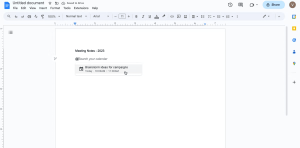
Image by https://www.makeuseof.com/ - Step 4: Add Attendees and Start Note-Taking: Begin by adding the attendees’ names and start jotting down your meeting notes. This seamless integration simplifies the note-taking process.
- Step 5: Attach Meeting Notes to the Calendar Event: To make it easy for attendees to access the meeting notes, click the “Attach” button on the right side. This action associates your notes with the calendar event.
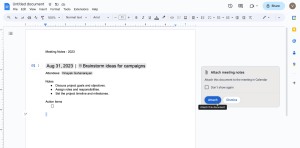
Image by https://www.makeuseof.com/ - Step 6: Email Meeting Notes to Attendees: Alternatively, you can choose to email the meeting notes directly to the attendees by clicking the envelope icon on the left.
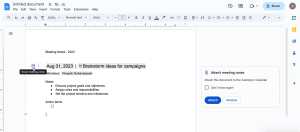
Image by https://www.makeuseof.com/ - Step 7: Attach Supplementary Drive Files: Google Docs allows you to attach supplementary Drive files to your meeting notes. Click the three dots on the left and select “Attach Drive files” to include additional resources.

Image by https://www.makeuseof.com/
3. Creating and Assigning Action Items
During your meeting, there will likely be action items that need to be recorded and assigned to specific team members. Google Docs provides a straightforward way to do this:
- List the tasks that need completion under “Action items.”
- Double-click on a task to highlight it.
- Click the “Add comment” icon and type in your comment.
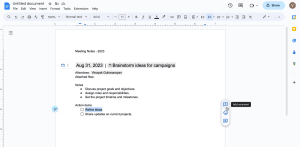
Image by https://www.makeuseof.com/ - To assign the task to a specific team member, type an “@” followed by their name.
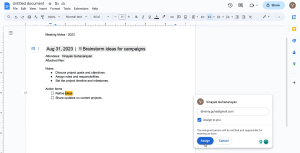
Image by https://www.makeuseof.com/ - Tick the checkbox in the comment box to assign the task and notify the responsible person.
- Finally, click “Assign.”
4. Benefits of Using Google Docs for Note-Taking
Google Docs offers numerous advantages for efficient note-taking and collaboration:
- Real-time Collaboration: Google Docs allows all meeting attendees to see updates, assigned tasks, and completed items in real time.
- Better Accountability: Assigning action items with checkboxes ensures accountability and motivates your team to complete tasks promptly.
- Remote Accessibility: Since Google Docs is cloud-based, notes are accessible from anywhere with an internet connection, facilitating remote collaboration.
- Time Efficiency: The user-friendly interface and built-in note-taking template free you from the hassle of organizing notes during the meeting, allowing you to actively participate.
Table: Benefits of Using Google Docs for Note-Taking
| Benefits | Description |
|---|---|
| Real-time Collaboration | Collaborate in real time, allowing all attendees to see updates, assigned tasks, and completed items. |
| Better Accountability | Assign action items with checkboxes to ensure accountability and motivate timely task completion. |
| Remote Accessibility | Access notes from anywhere with an internet connection, facilitating remote collaboration. |
| Time Efficiency | The user-friendly interface and built-in templates free you from organizing notes during the meeting. |
Note: The table above summarizes the benefits of using Google Docs for note-taking.
Conclusion
By utilizing Google Docs’ meeting notes template, you can enhance your meeting’s productivity, improve collaboration, and ensure that action items are tracked efficiently. Say goodbye to the hassles of manual note-taking and hello to enhanced productivity with this simple yet effective tool.





