




Troubleshooting Safari Issues on Mac: Fixes and Solutions
- Tech news
- August 2, 2023
- No Comment
- 39
Introduction to Safari Issues
Safari issues can range from blank webpages to unexpected crashes. These problems can disrupt your online experience and productivity. Thankfully, there are steps you can take to diagnose and resolve these problems.
Basic Steps to Resolve Safari Problems
Start with the basics. Often, a simple reload of the webpage can fix loading issues. Press Command-R or go to the View menu and select “Reload Page.” If that doesn’t work, try quitting Safari and reopening it. If Safari becomes unresponsive, force quit it by pressing Option-Command-Esc.
Dealing with Safari Extensions and Private Browsing
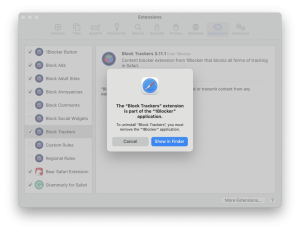
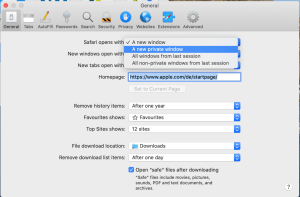
Safari extensions can sometimes cause conflicts. To troubleshoot, disable extensions by going to Safari > Preferences > Extensions. If the issue persists, test the page in a private window (Shift-Command-N). If it works in a private window, you might need to clear the website’s data, including cookies and caches. Go to Safari > Preferences > Privacy > Manage Website Data to remove the problematic website’s data.
Adjusting Safari Settings for Optimal Performance
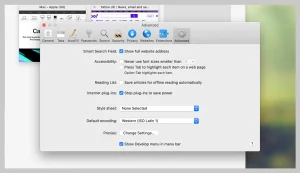
Safari settings can impact its performance. Access settings by going to Safari > Preferences. You can adjust privacy, security, and website-specific settings. For example, enabling JavaScript might be necessary for certain websites. Ensure your settings align with the website’s requirements.
Advanced Troubleshooting: iCloud Private Relay and Network Checks
iCloud Private Relay, available with iCloud+, can affect website access. Try reloading the page without Private Relay by going to View > Reload and Show IP Address. Additionally, VPN or security software can interfere with Safari. If you’ve installed such software, it might be causing the issue.
Network settings can also play a role. If you suspect network-related problems, view the page on another browser or device connected to the same network. Resetting network settings can be helpful. Set up a new network location on your Mac and see if the issue persists.
Conclusion
Safari issues on your Mac can be frustrating, but they are not insurmountable. By following these troubleshooting steps, you can diagnose and resolve a variety of Safari-related problems, ensuring a smoother browsing experience on your Mac.





