


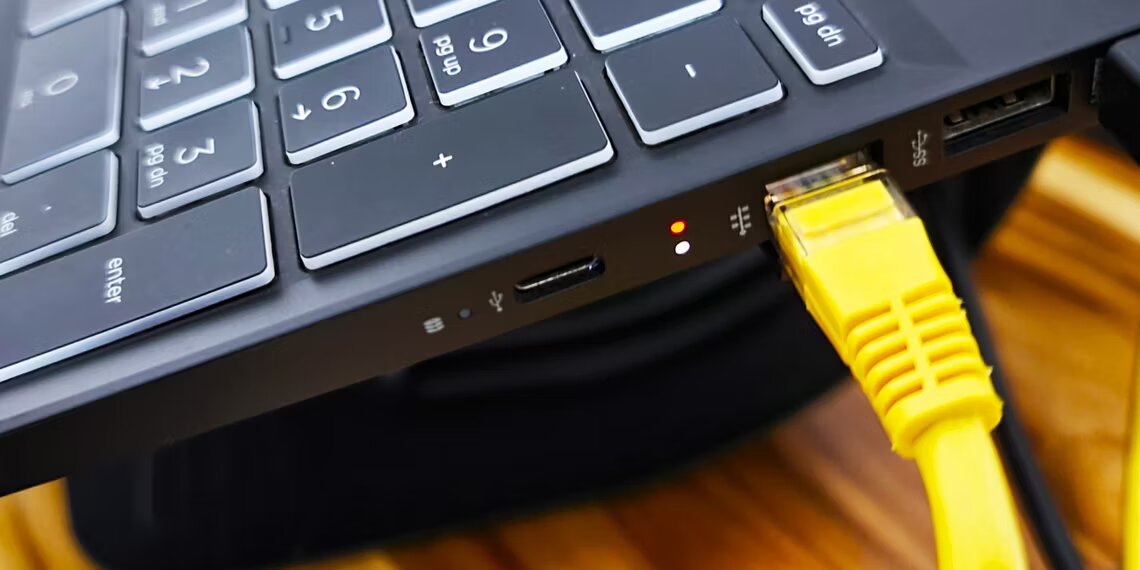

How to Fix Your Ethernet Connection Not Working on Windows 11
- Tech news
- August 2, 2023
- No Comment
- 57
Introduction:
Ethernet connections are known for their stability and reliability compared to Wi-Fi. However, they can also encounter issues, leaving you without an internet connection. In this guide, we will walk you through the steps to troubleshoot and fix Ethernet connection problems on Windows 11.
- Run the Network Adapter Troubleshooter: Windows 11 provides a built-in troubleshooter to handle common PC issues, including network problems. To use it for fixing the Ethernet not working issue:
- Press Win + I to open the Settings panel.
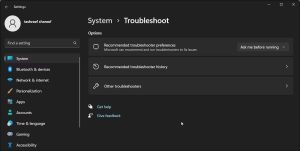
- Next, click on Other troubleshooters.
- Click the Run button for Internet Connections to launch the troubleshooter.
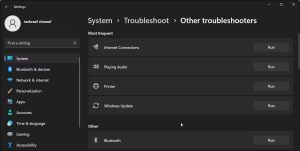
- Select Troubleshoot my connection to the Internet. The troubleshooter will look to identify the problem and recommend applicable fixes.
- Apply the fixes and close the troubleshooter to see if the issue is resolved.
If the problem persists, use the Network Adapter troubleshooter:
- Open Settings, and go to System > Troubleshoot > Other troubleshooters.
- In the right pane, scroll down and click on the Run button for Network Adapter
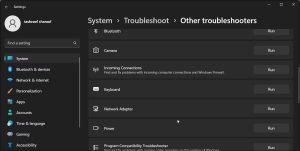
- In the Network Adapter troubleshooter dialog, select Ethernet.
- Click Next. Windows will look for any issue and recommend fixes if applicable.
Check the Ethernet Cable, Port, and Connection
If you see the No Internet access message, it can be due to a loose Ethernet connection to your PC or the router. Disconnect the cable from your PC and router’s port. Then, reconnect the cable and watch for the click sound to ensure it’s firmly connected.
Your router has multiple ports. The Internet port is used to connect your router to the modem. Make sure the cable is connected to the Ethernet port and not the Internet port.
Try to connect using a different Ethernet cable. This will help you determine if the issue is with your cable or something else. If you are shopping for a new cable, explore our guide on choosing an Ethernet cable for your wired connection to make the best decision.
Additionally, try to use a different Ethernet port on your router. If it works, you may have a faulty port requiring attention.
Perform a Power Reset for Your Modem and Router
You can create a new connection with a quick power reset. Useful to fix issues triggered by a temporary glitch.
Note that your Internet will be temporarily unavailable during the power reset. Make sure to pause any activity that relies on an active Internet connection.
To power reset the modem and router:
- Unplug the router’s power brick from the wall outlet.
- Next, unplug the modem power brick from the power source.
- Leave the network devices idle for a minute or two.
- Plug in the power adapter for the router and then for the modem.
- The modem and router may take some time to power on fully. Wait for all the lights to stop blinking.
- Once done, check your PC to see if the Ethernet connection is restored.
Run Network Commands to Perform a Network Reset
Windows 11 features a bunch of useful commands to reset network devices and network stack to troubleshoot networking issues. Run the following command in the given order to reset your network settings successfully.
- Press Win + S to open Windows search.
- Type cmd, right-click on Command Prompt, and select Run as administrator.
- In the Command Prompt window, type the following command one by one and press Enter to execute:
- Once successfully executed, close the Command Prompt and restart your PC to apply the changes.
- ou can also perform a network reset using Windows 11’s Settings panel.To perform a network reset from Settings:
- Press Win + I to open Settings.
- Open the Network & Internet tab in the left pane.
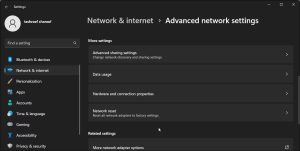
- Click on Advanced network settings.
- Scroll down to the More settings section.
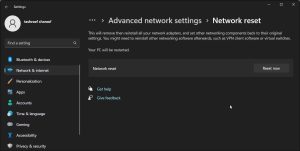
- Click on Network reset
- Next, click the Reset now button for Network reset.
Check the Ethernet Adapter’s Power Management Settings
Your PC can turn off connected but idle devices to save power. While a handy feature, this can also disrupt essential services.
To fix the problem, configure your Ethernet adapter’s power management settings in Device Manager. Here’s how to do it.
- Press Win + R to open Run.
- Type devmgmt.msc and click OK to open Device Manager.
- In Device Manager, expand the Network adapters section.
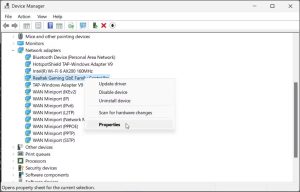
- Next, right-click on the Ethernet adapter and select Properties.
- Open the Power Management tab in the Properties dialog.
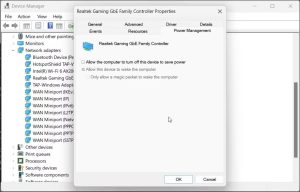
- Here, unselect the Allow the computer to turn off this device to save power option.
- Click OK to save the changes.
- Close Device Manager and restart your PC to apply the changes.
Uninstall the Ethernet Adapter Drivers
Outdated or corrupt Ethernet adapter drivers can cause the adapter to malfunction. To fix the issue, uninstall the adapter driver from Device Manager. Your PC will reinstall the driver upon restart.
To uninstall the Ethernet adapter driver:
- Press Win + R to open Run.
- Type devmgmt.msc and click OK to open Device Manager.
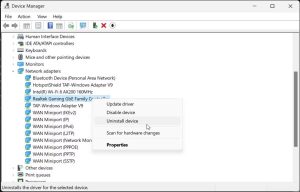
- Image by: Image by: https://www.makeuseof.com/windows-11-ethernet-not-working/
- Next, expand the Network adapters section.
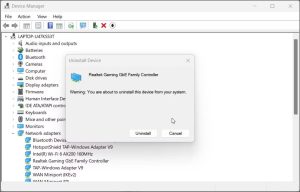
- Right-click on the Ethernet adapter entry and select Uninstall device.
- Confirm the decision and click on Uninstall.
Once done, restart your PC. Windows will automatically detect connected devices and install the missing driver for the Ethernet adapter.
Turn On and Off the Ethernet Adapter
Windows 11 lets you turn off individual network adapters for Wi-Fi, Ethernet, and Bluetooth from Settings. Reportedly, disabling and re-enabling the Ethernet adapter has fixed issues with the Ethernet connection.
To disable and re-enable the Ethernet adapter:
- Press Win + I to open Settings.
- In the left pane, click on the Network & internet tab.
- Scroll down to the end of the page and click on Advanced network settings.
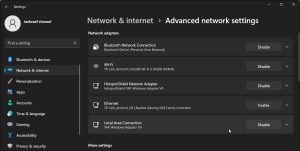
- Click the Disable button for Ethernet under the Network adapters section.
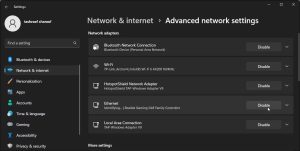
- You’ll notice the Ethernet icon disappear from your taskbar. Wait for a few minutes, then click on the Enable button for Ethernet.
- Once the Adapter is active, check if you can access the Internet via Ethernet.
Update your Router’s Firmware
Router firmware updates often tend to bring performance improvements and security patches. However, they may also include bug fixes related to your Ethernet connectivity issues.
Some routers are configured to install new updates automatically. But all of them allow you to check for new firmware updates and install them manually.
Explore our easy guide on how to update your router’s firmware to see if that helps resolve the Ethernet not working problem.
Restoring the Ethernet Connectivity on Your Windows 11 PC
The plug-n-play nature of the Ethernet connection can make it difficult to troubleshoot issues when it stops working. However, in most cases, a quick disconnect and reconnect of cables, power reset, and Windows network reset can fix the problem for most users.
Conclusion:
Ethernet connection problems on Windows 11 can be resolved through various troubleshooting steps. By following the methods outlined above, you can fix the Ethernet not working issue and enjoy a stable and reliable internet connection.





